
How to Install Memory in Laptop: A Complete Step-by-Step Guide for Beginners
A laptop is an essential device for studying, working, entertainment, gaming, and many other everyday activities. Whether you use your laptop for browsing the internet, editing documents, attending online classes, or running professional software, its performance depends on several important hardware components. One of these components is memory, commonly known as Random Access Memory (RAM).
When a laptop becomes slow, struggles to run multiple applications, or freezes while performing everyday tasks, insufficient RAM may be one of the reasons. Installing additional memory can improve multitasking performance, reduce unnecessary delays, and make your laptop more responsive. However, before upgrading, you must understand your laptop’s memory specifications, compatibility requirements, and installation procedure.
Learning how to install memory in laptop computers is useful for students, office workers, gamers, and anyone who wants to improve computer performance without purchasing an entirely new device.
The installation process is relatively simple for many laptops, but the exact procedure depends on the manufacturer, model, and internal design. Some laptops have accessible RAM slots, while others have memory permanently soldered onto the motherboard.
This comprehensive guide explains everything you need to know, from understanding laptop memory to selecting compatible RAM, preparing your device, installing a memory module, and checking whether the upgrade works correctly.
Read More: How to Connect Projector to Laptop: 15 Complete Guide to Wired and Wireless Connections
What Is Laptop Memory (RAM)?
Random Access Memory, commonly called RAM, is a temporary storage component that allows a laptop to access information quickly while applications are running.
When you open a web browser, launch a game, edit a photograph, or work with a spreadsheet, your laptop loads the necessary information into RAM. The processor can then access that information much faster than it could retrieve it from a traditional hard drive.
RAM is different from permanent storage devices such as SSDs and HDDs. It temporarily stores information and loses its contents when the laptop is switched off.
Read More: How to Cast Laptop to TV: Complete Guide to Wireless and Wired Screen Mirroring
How Does RAM Work?
RAM works as the laptop’s short-term working area. It stores the information that the processor currently needs to complete different tasks.
For example, imagine that you are preparing an assignment while keeping several browser tabs and a music application open. Your laptop uses RAM to manage the information required by these applications.
If the available memory becomes insufficient, the operating system may move some information to the storage drive. This process is considerably slower than accessing RAM, particularly when the laptop uses a traditional hard drive.
Adding sufficient memory can help reduce this problem and improve multitasking performance.
Read More: How to Pair AirPods to Laptop: 9 Easy Steps for Windows and Mac Users
Why Is RAM Important?
RAM plays several important roles in laptop performance.
- Faster multitasking: It allows you to run multiple applications simultaneously.
- Improved responsiveness: It helps applications access frequently required information quickly.
- Better gaming performance: It provides working memory for games and related applications.
- Smoother editing: It supports demanding activities such as video editing and graphic design.
- Improved productivity: It helps prevent slowdowns when working with multiple programs.
However, installing additional RAM does not automatically make every laptop faster. If the processor, graphics hardware, or storage drive is the main performance limitation, a memory upgrade may provide only a small improvement.
Why Should You Upgrade Your Laptop Memory?
Before learning how to install memory in laptop devices, it is important to understand why a memory upgrade may be necessary.
Different users have different computing requirements. A student who uses a word processor and browser may need less memory than a professional who edits videos or operates several demanding applications.
Here are some common reasons to upgrade laptop memory.
1. Improve Multitasking Performance
Multitasking means using multiple applications at the same time.
For example, you may want to attend an online meeting, prepare a document, download study materials, and browse the internet simultaneously.
When your laptop has insufficient RAM, switching between applications may become slow. Increasing memory capacity can provide additional working space for these activities.
2. Reduce System Slowdowns
A laptop with limited memory may become unresponsive when several applications are running.
You may notice:
- Delayed application opening.
- Slow switching between browser tabs.
- Frequent application freezing.
- Unexpected delays when opening files.
- Increased use of virtual memory.
A RAM upgrade may reduce these problems when insufficient physical memory is the cause.
3. Improve Gaming Experience
Modern computer games often require considerable memory to operate smoothly.
Additional RAM may help games load assets, manage background applications, and maintain stable performance.
However, gaming performance also depends on the processor, graphics card, cooling system, and storage device.
4. Support Professional Software
Applications used for video editing, programming, animation, engineering, and graphic design can require substantial memory.
If you regularly use demanding software, upgrading RAM may make your workflow more comfortable.
5. Extend Your Laptop’s Useful Life
Purchasing a new laptop can be expensive. If your existing device supports a memory upgrade, installing additional RAM may help it handle modern applications more comfortably.
Nevertheless, a memory upgrade cannot overcome every hardware limitation.
Read More: How to Fix Slow Laptop: Complete Guide to Improving Speed, Performance, and Efficiency
Things to Check Before Installing Laptop Memory
Preparation is essential before opening your laptop. Installing an incompatible memory module may prevent the computer from starting or cause stability problems.
Check the following requirements before purchasing or installing RAM.
1. Check Your Laptop Model
First, identify your laptop’s exact model number.
You can usually find this information:
- On a label underneath the laptop.
- On the original packaging.
- In the manufacturer’s system information utility.
- In the BIOS or UEFI settings.
- In Windows System Information.
In Windows, press Windows + R, type msinfo32, and press Enter.
Look for the System Manufacturer and System Model entries.
Use the exact model number to find the manufacturer’s memory specifications and service manual.
2. Check the Maximum Supported RAM
Every laptop has a maximum supported memory capacity.
For example, a particular laptop may support up to 16 GB, while another model may support 32 GB or 64 GB.
The maximum capacity depends on several factors, including:
- Motherboard design.
- Processor memory controller.
- BIOS or UEFI support.
- Number of memory slots.
- Manufacturer specifications.
Do not assume that every laptop supports the same maximum capacity.
3. Identify the RAM Generation
Laptop memory is available in different generations, including:
- DDR3.
- DDR3L.
- DDR4.
- DDR5.
These generations have different electrical specifications, physical designs, and operating characteristics.
They are not interchangeable. For example, DDR4 memory cannot be installed in a DDR5 slot.
Always purchase the memory generation specified by your laptop manufacturer.
4. Check the RAM Form Factor
Most laptops use a compact memory module called SO-DIMM.
SO-DIMM stands for Small Outline Dual In-Line Memory Module.
It is smaller than the DIMM modules commonly used in desktop computers.
However, some modern laptops use soldered memory or proprietary designs. Therefore, check the manufacturer’s documentation before purchasing a module.
5. Check Memory Speed
RAM modules operate at specific speeds, commonly expressed in MT/s (megatransfers per second).
For example, a laptop may support DDR4-3200 memory or DDR5-5600 memory.
The installed memory generally operates according to the supported speed of the laptop’s memory controller and the installed modules.
Using a faster-rated module does not guarantee that it will operate at its advertised maximum speed.
6. Check Available Memory Slots
Some laptops contain two accessible RAM slots, while others have only one accessible slot or a combination of soldered memory and an additional slot.
You can check the available slots through system utilities or the manufacturer’s specifications.
On Windows, Task Manager can provide useful information.
- Press Ctrl + Shift + Esc.
- Open the Performance tab.
- Select Memory.
- Check the memory capacity and the Slots used information, if available.
Remember that Windows may not always report the complete physical memory configuration accurately.
Read More: How to Screenshot on HP Laptop: Complete Guide to Capturing, Editing, and Saving Screenshots
Tools Required to Install Laptop Memory
You do not need many tools to complete a typical laptop RAM upgrade.
However, having the correct equipment makes the installation safer and easier.
Essential Tools
1. Precision screwdriver
A small Phillips screwdriver is commonly required to remove laptop bottom-cover screws.
Some laptops use Torx screws, so check the service manual.
2. Plastic opening tool
A plastic opening tool helps release the clips holding the laptop’s bottom cover.
Avoid using sharp metal objects because they can damage the casing or internal components.
3. Anti-static wrist strap
An anti-static wrist strap helps reduce the risk of electrostatic discharge damaging sensitive electronic components.
4. Clean working surface
Use a clean, dry, flat surface with sufficient lighting.
5. Compatible RAM module
Purchase a memory module that meets your laptop’s specifications.
6. Small container for screws
Keep removed screws in a container so that they are not lost during installation.
Read More: How to Connect AirPods to Laptop: A Complete Guide for Windows and Mac Users
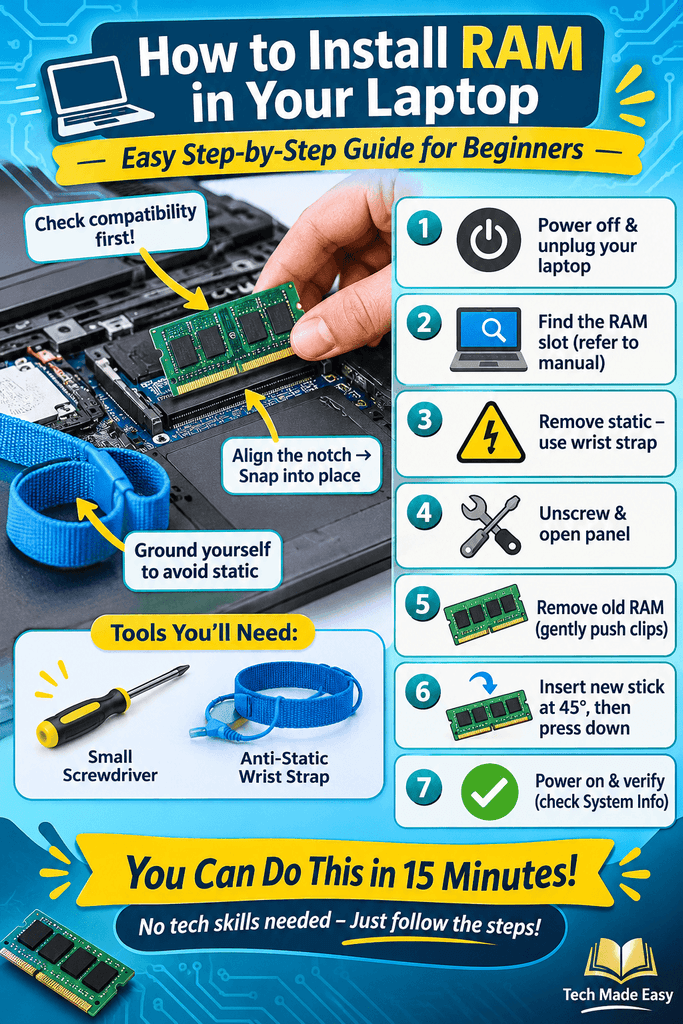
How to Install Memory in Laptop: Step-by-Step Instructions
Now, let’s explore how to install memory in laptop computers safely and correctly.
The following instructions describe a typical laptop with removable SO-DIMM memory. Your laptop may have a slightly different internal arrangement.
Step 1: Back Up Important Data
Before opening your laptop, back up important files.
Although installing RAM normally does not affect stored data, creating a backup is a sensible precaution when performing hardware maintenance.
You can save important documents, photographs, and other files to:
- An external hard drive.
- A USB flash drive.
- A cloud storage service.
- Another computer.
Also, save your work and close all running applications.
Step 2: Shut Down the Laptop
Completely shut down your laptop before beginning the installation.
Do not simply put the device into sleep or hibernation mode.
Follow these instructions:
- Save all open files.
- Close running applications.
- Open the Start menu.
- Select Power.
- Choose Shut down.
- Wait until the laptop switches off completely.
Disconnect the charger and every external device, including USB drives, external monitors, and accessories.
Step 3: Disconnect the Battery
Battery disconnection is an important safety step.
If your laptop has a removable battery, remove it according to the manufacturer’s instructions.
If the battery is internal, follow the service manual to access and disconnect its connector.
Never pull or force a battery connector. Use the recommended procedure and appropriate plastic tools.
Some laptops also provide a battery-disabling option in BIOS or UEFI. Follow the manufacturer’s instructions if this feature is available.
Do not open a laptop if you are unsure how to disconnect its internal battery safely.
Step 4: Remove the Laptop’s Bottom Cover
Place the laptop upside down on a clean, flat surface.
Identify the screws securing the bottom cover.
Use the correct screwdriver to remove them carefully.
Keep the screws organized because they may have different lengths.
Next, use a plastic opening tool to release the cover’s clips gently.
Work around the edges without applying excessive force.
Some laptops have hidden screws underneath rubber feet or other components. Consult the service manual rather than forcing the cover open.
Once the clips are released, lift the bottom cover carefully.
Step 5: Locate the RAM Slots
After removing the bottom cover, locate the memory modules.
RAM slots are usually positioned near the centre or one side of the motherboard.
A typical SO-DIMM module is a small rectangular circuit board inserted into a narrow connector.
You may see:
- One occupied memory slot.
- Two occupied memory slots.
- One empty memory slot.
- Soldered memory with an additional removable slot.
Identify the memory slots before touching any components.
If your laptop uses only soldered memory, you cannot perform a conventional removable-module upgrade.
Step 6: Remove the Existing RAM (If Necessary)
If you are replacing an existing memory module, carefully release its retaining clips.
Most SO-DIMM modules are held in place by two small metal or plastic clips.
Follow these steps:
- Locate the retaining clips on both sides of the module.
- Gently move the clips outward.
- Allow the memory module to rise at an angle.
- Hold the module by its edges.
- Pull it out in the same direction as its connector.
Avoid touching the gold contacts or sensitive electronic components.
If you are adding memory to an empty slot, you do not need to remove the existing module.
Step 7: Insert the New RAM Module
This is the most important stage of the installation process.
Take the compatible memory module out of its packaging.
Hold it by the edges and examine the gold connector.
You will notice a small notch along the connector. This notch must align with the corresponding key inside the RAM slot.
Follow these instructions:
- Position the memory module at the angle specified by the manufacturer, commonly around 30 degrees.
- Align the notch with the slot.
- Slide the module into the connector.
- Push it inward gently until the contacts are properly seated.
- Press the module downward until the retaining clips lock into place.
You may hear or feel a slight click when the module is secured.
Never force the memory module into the slot. If it does not slide in easily, check its orientation and compatibility.
Step 8: Check the Installation
After inserting the module, inspect its position carefully.
Make sure:
- The module is fully inserted.
- Both retaining clips are engaged.
- The memory module sits flat in its locked position.
- No cables have been disconnected accidentally.
- No screws or other objects remain inside the laptop.
A poorly seated module may prevent the laptop from starting or cause memory detection problems.
Step 9: Reconnect the Battery
Once the RAM module is properly installed, reconnect the internal battery if you disconnected it.
Make sure the connector is aligned correctly and secured according to the manufacturer’s instructions.
If your laptop has an externally removable battery, reinstall it after closing the bottom cover.
Step 10: Reattach the Bottom Cover
Carefully position the bottom cover over the laptop.
Align the edges and press gently until the retaining clips engage.
Reinstall all screws in their original positions.
Do not overtighten them because excessive force can damage the screw threads or laptop casing.
Step 11: Start the Laptop
Reconnect the power adapter.
Press the power button and allow the laptop to start.
The first startup after a memory upgrade may take longer than usual because some systems perform memory training or hardware configuration.
Do not interrupt the process unless the manufacturer’s troubleshooting instructions indicate that intervention is necessary.
If the laptop starts successfully, proceed to verify the installed memory.
Step 12: Verify the Installed RAM
After the laptop starts, check whether the operating system recognizes the new memory.
In Windows:
- Press Ctrl + Shift + Esc.
- Open Task Manager.
- Select Performance.
- Click Memory.
- Check the total installed memory.
You can also press Windows + R, type msinfo32, and check the Installed Physical Memory (RAM) entry.
For a more detailed check, use a trusted hardware information utility.
If the displayed memory capacity matches your expected configuration, the installation has likely been successful.
Read More: How to Clean a Laptop Fan: 9 Essential Steps for Better Cooling and Performance
How to Choose the Right Laptop RAM
Selecting compatible memory is just as important as installing it correctly.
Before buying a module, consider the following factors.
1. Memory Capacity
RAM capacity determines how much temporary working data your laptop can hold.
Common laptop memory configurations include:
| RAM capacity | Typical usage |
| 4 GB | Basic tasks and older systems |
| 8 GB | Everyday browsing and office work |
| 16 GB | Multitasking, studying, and general productivity |
| 32 GB | Gaming, programming, and demanding applications |
| 64 GB or more | Professional workloads on supported laptops |
These are general guidelines, not universal requirements. The ideal capacity depends on your applications and operating system.
2. Memory Generation
Check whether your laptop supports DDR3, DDR4, DDR5, or another specific memory type.
Never purchase RAM based only on its capacity.
For example, a 16 GB DDR5 module will not work in a laptop designed exclusively for DDR4 memory.
3. Memory Speed
Choose a module with a speed supported by your laptop.
If you install modules with different supported speeds, the system may operate them at a common lower speed.
4. Single-Channel and Dual-Channel Memory
Memory channels determine how the processor communicates with RAM.
A compatible two-module configuration may enable dual-channel operation, increasing available memory bandwidth.
For example, two 8 GB modules may provide dual-channel operation in a laptop that supports this configuration.
However, some laptops use flexible or asymmetric memory configurations, and the exact behaviour depends on the processor and motherboard.
5. Brand and Reliability
Purchase RAM from a reputable manufacturer or authorized retailer.
Well-known memory manufacturers include Crucial, Kingston, Samsung, and Corsair.
Check the module specifications, warranty, and compatibility information before purchasing.
Read More: How to Clean Laptop Screen: Complete Guide to Safe Cleaning Methods, Tools, Steps and Maintenance
Can You Install RAM in Every Laptop?
No. Not every laptop allows users to install or replace memory.
Modern laptops use several different memory designs.
Laptops With Removable RAM
These laptops have accessible SO-DIMM slots.
Users can usually replace existing modules or install additional memory, provided the motherboard supports the desired configuration.
Laptops With Soldered RAM
Some compact laptops have memory chips permanently attached to the motherboard.
These chips cannot be removed using a conventional RAM installation procedure.
In such cases, the memory capacity is generally fixed at the time of purchase.
Laptops With Both Soldered and Removable Memory
Some models combine soldered RAM with one removable memory slot.
For example, a laptop may have 8 GB of soldered memory and one additional SO-DIMM slot.
The maximum supported configuration depends on the manufacturer and processor specifications.
Always check the official documentation before buying additional memory.
Read More: Best AI Tools for Academic Research Automation: 11 Essential Tools, Features, and Benefits
Common Problems After Installing Laptop Memory
Even when you follow the correct installation procedure, problems may occasionally occur.
Understanding common issues can help you identify the cause.
1. Laptop Does Not Turn On
If your laptop does not start after installing RAM, possible causes include:
- Incorrectly seated memory.
- Incompatible RAM.
- A disconnected internal battery.
- An accidentally disturbed internal cable.
- A hardware problem.
Turn off the laptop, disconnect the charger, and follow the manufacturer’s safety procedure before inspecting the installation.
Never repeatedly force the laptop to start when a hardware fault is suspected.
2. Laptop Turns On but Shows a Black Screen
A black screen after a memory upgrade may indicate that the RAM is not correctly installed or recognized.
Possible solutions include:
- Switch off the laptop.
- Disconnect external power.
- Disconnect the battery according to the service manual.
- Check the RAM module’s position.
- Reseat the module if necessary.
- Test one compatible module at a time, if supported.
If the problem continues, seek professional assistance.
3. Laptop Recognizes Less RAM Than Expected
Sometimes the operating system displays less usable memory than the total installed capacity.
Possible reasons include:
- Part of the memory is reserved for integrated graphics.
- One module is not detected.
- The laptop has a hardware or firmware limitation.
- The installed configuration is unsupported.
Check the BIOS or UEFI memory information and compare it with the manufacturer’s specifications.
4. Laptop Becomes Unstable
An incompatible or defective memory module may cause unexpected restarts, application crashes, or system errors.
Check the module specifications and run a reliable memory diagnostic test.
In Windows, you can use Windows Memory Diagnostic:
- Press Windows + R.
- Type mdsched.exe.
- Press Enter.
- Select the option to restart and check for memory problems.
Save your work before running the diagnostic because the computer will restart.
5. Laptop Makes Beeping Sounds
Some laptops use beep codes or indicator lights to report hardware problems.
A memory-related error may occur when the system cannot detect or initialize RAM correctly.
The meaning of each beep pattern depends on the manufacturer and model.
Consult your laptop’s service documentation to identify the error.
Safety Precautions When Installing Laptop Memory
Safety should always be a priority when working with laptop hardware.
Follow these precautions to reduce the risk of damaging your device.
Avoid Electrostatic Discharge
Electrostatic discharge can damage sensitive electronic components.
Before handling RAM:
- Work on a suitable non-static surface.
- Use an anti-static wrist strap when possible.
- Avoid working on carpets.
- Handle memory modules by their edges.
- Avoid touching the gold contacts.
Never Install RAM While the Laptop Is Powered On
Always shut down the laptop and disconnect external power before accessing internal components.
Follow the manufacturer’s battery-disconnection procedure.
Do Not Force the RAM Module
Memory modules are designed to fit in a specific orientation.
If the notch does not align, do not push the module into the slot.
Check that you have purchased the correct memory type.
Follow the Manufacturer’s Service Manual
Different laptops have different internal layouts.
Some models require removing additional components before accessing RAM.
Others have special procedures for disabling the internal battery.
Use the official service manual whenever possible.
Be Careful With Internal Cables
Laptop motherboards contain delicate ribbon cables and connectors.
Avoid pulling, bending, or disturbing cables unnecessarily.
If you accidentally disconnect a cable, do not force it back into place. Check its correct orientation and locking mechanism.
How Much RAM Does Your Laptop Need?
The amount of memory you need depends on how you use your laptop.
Here are some general recommendations.
4 GB RAM
Four gigabytes of RAM may be sufficient for very basic tasks on older systems.
However, modern operating systems and browsers can use considerable memory. Therefore, 4 GB may feel restrictive during everyday multitasking.
8 GB RAM
Eight gigabytes can provide a reasonable experience for basic productivity, browsing, document editing, and online learning.
It may be insufficient for demanding professional applications or extensive multitasking.
16 GB RAM
Sixteen gigabytes is a practical configuration for many everyday users.
It can support multiple browser tabs, office applications, online meetings, programming environments, and several other activities.
32 GB RAM
Thirty-two gigabytes is useful for more demanding workloads.
It may benefit users working with video editing, virtual machines, large datasets, advanced programming tools, and modern games.
64 GB RAM or More
Professional users may require 64 GB or more for intensive workloads.
However, this capacity is only useful when the laptop supports it and the applications can benefit from additional memory.
Does Installing More RAM Make a Laptop Faster?
Installing additional RAM can improve laptop performance, but the improvement depends on the system’s existing limitations.
If your laptop frequently runs out of available memory, upgrading RAM may produce a noticeable improvement.
For example, a laptop with 4 GB of RAM may struggle when running several modern applications simultaneously. Upgrading to 8 GB or 16 GB may make multitasking considerably smoother, provided the processor and other hardware are adequate.
However, adding memory does not directly increase the processor’s clock speed.
It also does not automatically improve graphics performance or internet speed.
If your laptop is slow because of an outdated processor, overheating, malware, or a failing storage drive, installing more RAM may not solve the underlying problem.
Therefore, identify the cause of poor performance before spending money on an upgrade.
Frequently Asked Questions (FAQ)
1. Can I install RAM in my laptop myself?
Yes, you can install RAM yourself if your laptop has accessible memory slots and you have the correct compatible module. Follow the manufacturer’s service instructions and take appropriate anti-static precautions.
2. How do I know whether my laptop supports additional RAM?
Check your laptop’s exact model number and consult the manufacturer’s specifications or service manual. You can also check the number of available memory slots using system information utilities.
3. Is 8 GB RAM enough for a laptop?
Eight gigabytes may be sufficient for everyday browsing, office work, document editing, and online learning. However, users who run demanding applications or multitask extensively may benefit from 16 GB or more.
4. Can I use two different RAM brands in one laptop?
Yes, different RAM brands can sometimes work together if their specifications are compatible. However, matching modules with the same generation, capacity, and supported speed can make configuration easier and more predictable.
5. Can I install DDR4 RAM in a DDR5 laptop?
No. DDR4 and DDR5 memory have different physical and electrical specifications. They are not interchangeable.
6. Will installing more RAM delete my files?
No. A normal RAM upgrade does not erase files stored on your SSD or HDD. Nevertheless, backing up important data before performing hardware maintenance is always recommended.
7. How long does it take to install laptop memory?
For a laptop with easily accessible RAM slots, the installation may take approximately 15–30 minutes. More complicated laptop designs may require additional time.
8. Can I install 16 GB RAM in a laptop that currently has 8 GB?
It depends on the laptop’s maximum supported memory and available slots. If the laptop supports 16 GB or more, you may be able to replace the existing module or add another compatible module.
9. Does more RAM improve gaming performance?
Additional RAM can improve gaming performance when the existing memory capacity is insufficient. However, the graphics processor, CPU, cooling system, and game optimization also influence gaming performance.
10. What should I do if my laptop does not recognize the new RAM?
Check whether the module is compatible and correctly seated. Inspect the BIOS or UEFI memory information and run a memory diagnostic test. If the problem continues, contact a qualified technician.
11. Can I upgrade soldered laptop memory?
Soldered memory cannot normally be replaced through a standard RAM installation procedure. Replacing or modifying soldered memory requires specialized equipment and expertise, and may not be supported by the manufacturer.
12. Should I upgrade RAM or replace my HDD with an SSD?
The best option depends on your laptop’s current hardware and performance problems. An SSD can significantly improve boot times and application loading, while additional RAM can improve multitasking when memory is insufficient. Some laptops benefit from both upgrades.
Conclusion
Laptop memory plays an important role in overall computer performance. It provides temporary working space for applications, supports multitasking, and helps the processor access frequently needed information quickly.
Understanding how to install memory in laptop computers can help you upgrade a compatible device, improve its ability to handle demanding applications, and extend its useful life.
The process involves checking compatibility, selecting the correct RAM module, shutting down the laptop, disconnecting its battery, accessing the memory slots, installing the module, and verifying the new capacity.
Remember that not every laptop supports removable memory. Some models have soldered RAM, while others combine soldered memory with an additional upgradeable slot. Therefore, always consult the manufacturer’s specifications before purchasing a memory module.
Most importantly, work carefully, use appropriate tools, protect internal components from electrostatic discharge, and never force a memory module into its slot.
With proper preparation and attention to safety, a compatible laptop RAM upgrade can be a practical way to improve everyday computing performance without purchasing an entirely new computer.