
How to Clean Laptop Screen: Complete Guide to Safe Cleaning Methods, Tools, Steps and Maintenance
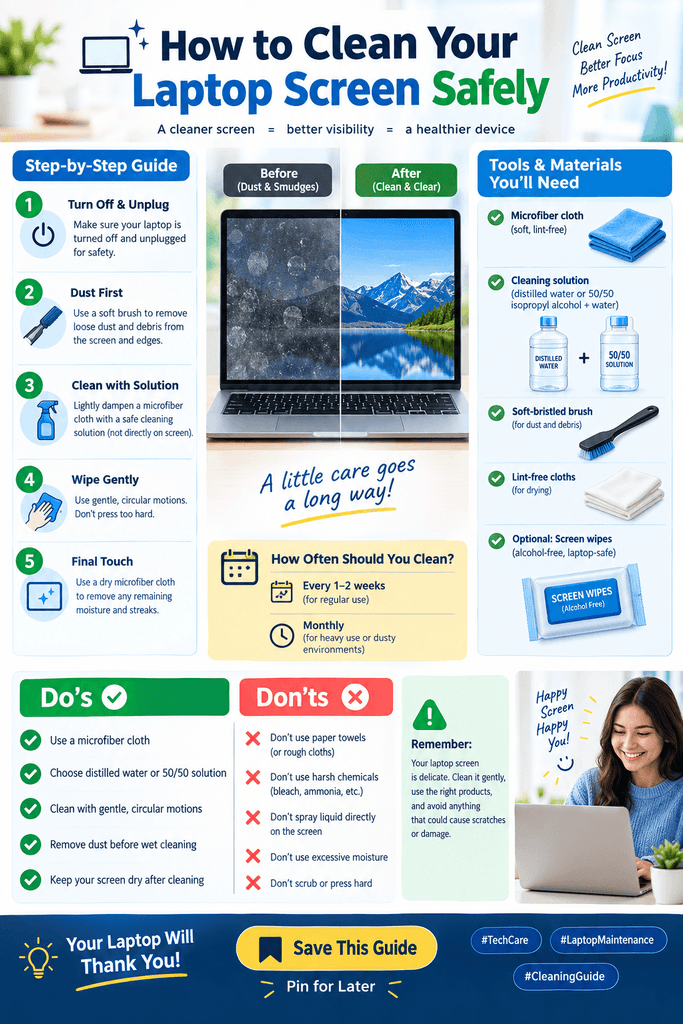
A clean display is essential for enjoying a clear viewing experience, maintaining productivity and protecting your device from unnecessary wear. Over time, fingerprints, dust, oil, smudges and other particles accumulate on the display surface, making it difficult to see images and text clearly. Although cleaning may appear to be a simple task, using the wrong materials or techniques can damage delicate screen coatings.
Understanding how to clean laptop screen surfaces safely is important for anyone who wants to maintain their computer in good condition. Modern laptops use different display technologies and protective coatings, including LCD, LED, OLED and touchscreen panels. Each type requires careful handling to prevent scratches, moisture damage and deterioration of its anti-reflective properties.
Fortunately, cleaning does not require expensive equipment or complicated procedures. With a clean microfiber cloth, suitable cleaning solution and a few precautions, you can remove everyday dirt without damaging the display.
This comprehensive guide explains how to clean laptop screen surfaces properly, which cleaning products to use, which materials to avoid and how to maintain a spotless display. It also covers different cleaning situations, including removing fingerprints, stubborn stains and oily marks.
Read More: Best AI Tools for Academic Research Automation: 11 Essential Tools, Features, and Benefits
What Is a Laptop Screen?
A laptop screen is the visual display component of a portable computer that presents information, images, videos, graphics and other digital content. It allows users to interact with the computer through a graphical interface.
Most modern laptops use LCD (Liquid Crystal Display) or OLED (Organic Light-Emitting Diode) technology.
An LCD uses liquid crystals to control how light passes through individual pixels. Many LCD panels use LED backlighting to illuminate the display. OLED panels, in contrast, produce light directly through organic light-emitting materials in individual pixels.
The outer surface of a display may include several protective layers, such as:
- Protective layer: Helps protect the display from minor physical contact.
- Anti-glare coating: Reduces reflections from surrounding light sources.
- Anti-reflective coating: Minimises unwanted reflections and improves visibility.
- Oleophobic coating: Helps resist fingerprints and oily marks on certain displays.
- Touch-sensitive layer: Allows users to interact directly with touchscreen devices.
These components make modern displays delicate and sensitive to unsuitable cleaning materials. Therefore, proper cleaning techniques are essential.
Read More: AI SEO Automation Features: 9 Essential Benefits, Tools, and Strategies for Better Rankings
Why Is It Important to Clean a Laptop Screen?
Regular cleaning is important for maintaining display clarity, improving the viewing experience and preventing dirt from accumulating on the surface.
Here are some important reasons to keep your display clean.
1. Improves Display Clarity
Dust, fingerprints and oily marks can reduce visibility and make displayed content appear unclear. Removing these contaminants helps restore the original appearance of the display.
A clean surface makes it easier to read documents, view photographs, watch videos and work with detailed graphics.
2. Reduces Fingerprints and Smudges
Frequent use can leave fingerprints and oily marks on the display, especially on touchscreen laptops.
These marks can become increasingly noticeable under bright lighting. Appropriate cleaning removes them without unnecessarily affecting the protective coating.
3. Supports a Better Working Experience
A dirty display can be distracting, particularly when working for extended periods.
Keeping the surface clean creates a more comfortable viewing environment and allows users to concentrate on their tasks.
4. Prevents Dust Accumulation
Dust particles can gradually accumulate on the display and around its edges.
Although ordinary dust does not usually damage the screen immediately, rubbing it against the surface with an unsuitable cloth can cause scratches.
Regular dust removal reduces this risk.
5. Maintains the Appearance of the Laptop
A clean computer looks more professional and well-maintained.
This is particularly useful for students, teachers, office workers, designers and professionals who regularly use their laptops in workplaces or educational environments.
Read More: AI Automation Consulting: 9 Essential Benefits, Services, Strategies, and Business Applications
What Do You Need to Clean a Laptop Screen?
Before learning how to clean laptop screen surfaces, it is important to select the appropriate cleaning materials.
Using suitable tools reduces the possibility of scratches, coating damage and moisture-related problems.
The following materials are generally recommended.
1. Microfiber Cloth
A clean microfiber cloth is one of the safest and most useful tools for cleaning modern displays.
It contains extremely fine fibres that can collect dust, fingerprints and oily residues without requiring excessive pressure.
Choose a soft, lint-free microfiber cloth specifically intended for optical surfaces or electronics.
Avoid using a cloth that has accumulated dust, dirt or abrasive particles.
2. Distilled Water
Distilled water is suitable for removing many ordinary marks from display surfaces when used sparingly.
Unlike ordinary tap water, it contains very low levels of dissolved minerals. Consequently, it is less likely to leave mineral deposits after drying.
Always apply a small amount to the cleaning cloth rather than directly onto the display.
3. Manufacturer-Approved Screen Cleaner
Some manufacturers recommend specialised cleaning solutions for particular display surfaces.
These products are designed for electronics and may help remove fingerprints and oily marks.
However, not every screen cleaner is compatible with every coating. Check the manufacturer’s cleaning instructions before purchasing or using one.
4. Compressed Air
Compressed air can help remove loose dust from areas around the display, including the edges and hinges.
Use it carefully and follow the manufacturer’s instructions.
Do not spray liquid propellants onto the display or use excessive pressure.
5. A Second Dry Microfiber Cloth
Keeping a separate dry microfiber cloth is useful for removing remaining moisture and gently buffing the surface.
It also prevents cleaning residues from being transferred back onto the display.
How to Clean Laptop Screen: Step-by-Step Guide
Cleaning requires a gentle approach. The following steps explain how to clean laptop screen surfaces without exposing them to unnecessary risks.
Step 1: Turn Off the Laptop
Before beginning, shut down the computer completely.
Disconnect the charger and remove any connected accessories, such as USB devices, external monitors and headphones.
Allow the display to cool if the computer has been operating for an extended period.
Cleaning a powered-off, cool display makes dirt and smudges easier to identify. It also reduces the risk of electrical problems if moisture is accidentally introduced.
Step 2: Inspect the Display
Examine the surface under adequate lighting.
Identify the types of dirt present, such as:
- Loose dust particles
- Fingerprints
- Oily smudges
- Dried water marks
- Food-related stains
- Adhesive residues
Identifying the contamination helps you choose the appropriate cleaning method.
For example, loose dust generally requires only a dry microfiber cloth, whereas oily fingerprints may require a slightly damp cloth.
Step 3: Remove Loose Dust
Use a clean, dry microfiber cloth to remove loose dust particles.
Move the cloth gently across the display without applying excessive pressure.
Avoid using your fingers, paper towels or rough fabrics because they may transfer oils or scratch the surface.
If dust is present around the edges, use a soft brush designed for electronics.
Never rub visible particles aggressively against the display.
Step 4: Prepare the Cleaning Cloth
If dry cleaning does not remove the marks, slightly dampen a clean microfiber cloth with distilled water or a manufacturer-approved cleaning solution.
The cloth should be damp rather than wet.
Before touching the display, squeeze out any excess moisture.
Never pour or spray cleaning liquid directly onto the display. Liquid can enter through the edges and reach sensitive electronic components.
Step 5: Wipe the Display Gently
Place the damp microfiber cloth against the surface and wipe gently.
Use light, controlled movements rather than applying pressure to stubborn marks.
You can use horizontal or vertical movements to cover the entire display systematically.
Avoid pressing hard on individual areas because excessive pressure can damage the LCD panel or other delicate display components.
Step 6: Clean Stubborn Fingerprints
Some fingerprints contain oils that cannot be removed completely with a dry cloth.
For these marks, use a slightly damp microfiber cloth with distilled water, provided the manufacturer’s instructions permit it.
Gently wipe the affected area until the marks disappear.
If a fingerprint remains, repeat the process instead of increasing the pressure.
Do not scrape dried marks with your fingernails or sharp objects.
Step 7: Dry the Surface
Use a second clean, dry microfiber cloth to remove any remaining moisture.
Wipe gently until the surface is completely dry.
Check the display under different lighting conditions to identify any remaining streaks or marks.
Allow the surface to air-dry completely before closing the laptop.
Step 8: Inspect the Final Result
Once the cleaning process is complete, inspect the entire display.
Check for:
- Remaining fingerprints
- Visible dust particles
- Cleaning streaks
- Moisture near the edges
- Residue from cleaning products
If necessary, repeat gentle cleaning with a clean cloth.
Do not continue rubbing an area if it appears scratched, discoloured or damaged. Such problems may require professional inspection.
Read More: Gridone AI Automation: A Complete Guide to Features, Benefits, Use Cases, and Future Potential
How to Clean Different Types of Laptop Screens
Different display technologies may have different surface coatings and cleaning requirements. Understanding these differences helps prevent accidental damage.
1. How to Clean an LCD Laptop Screen
LCD displays are widely used in laptops because they offer good image quality, energy efficiency and relatively affordable manufacturing costs.
Their surfaces can be sensitive to pressure and unsuitable chemicals.
To clean an LCD display:
- Turn off the laptop and disconnect the power supply.
- Remove loose dust using a dry microfiber cloth.
- Slightly dampen the cloth with distilled water if necessary.
- Wipe gently without pressing against the panel.
- Dry the surface using another clean microfiber cloth.
Avoid excessive moisture and harsh chemical cleaners.
2. How to Clean an LED Laptop Screen
An LED laptop display generally refers to an LCD panel that uses LED backlighting.
Its cleaning requirements are therefore similar to those of conventional LCD displays.
Use a soft microfiber cloth and a suitable cleaning solution approved by the manufacturer.
Avoid spraying liquid directly onto the surface or applying excessive pressure.
3. How to Clean an OLED Laptop Screen
OLED displays are known for their excellent contrast, deep black levels and vibrant colours.
Although their image-producing technology differs from LCD, their outer surfaces still require gentle cleaning.
Follow these precautions:
- Switch off the computer before cleaning.
- Use a clean microfiber cloth.
- Remove loose dust without rubbing aggressively.
- Use only cleaning products approved for the display coating.
- Avoid excessive moisture and pressure.
OLED technology does not mean that the outer surface is resistant to scratches or chemical damage.
4. How to Clean a Touchscreen Laptop
Touchscreen displays are frequently exposed to fingerprints because users interact with them directly.
Their surfaces may include special coatings designed to reduce fingerprints and improve touch sensitivity.
To clean a touchscreen:
- Turn off the device.
- Disconnect the charger.
- Remove dust using a microfiber cloth.
- Use a slightly damp cloth if necessary and permitted by the manufacturer.
- Wipe gently to remove fingerprints.
- Dry the surface completely.
Avoid abrasive materials and harsh chemicals that could damage the touchscreen coating.
5. How to Clean a Matte Laptop Screen
Matte displays have a non-glossy surface that helps reduce reflections.
Their textured or coated surfaces require careful handling.
Use a soft, clean microfiber cloth and follow the manufacturer’s recommended cleaning procedure.
Avoid excessive rubbing because it may affect the uniform appearance of the matte finish.
Read More: AI Automation Platform: 9 Essential Benefits, Features, Types & Applications
How to Remove Different Types of Stains from a Laptop Screen
Not all marks require the same cleaning approach. Some contaminants can be removed easily, while others require additional care.
The following methods explain how to handle common cleaning situations.
1. Removing Fingerprints
Fingerprints are among the most common types of marks found on laptop displays.
They contain natural oils from the skin, which can create visible smudges.
Recommended method:
- Turn off the computer.
- Use a clean microfiber cloth.
- Lightly dampen the cloth with distilled water if necessary.
- Gently wipe the affected areas.
- Finish with a dry microfiber cloth.
Avoid applying excessive pressure to remove stubborn fingerprints.
2. Removing Dust
Dust can accumulate even when a laptop is not being used.
A dry microfiber cloth is generally sufficient for removing loose dust.
Use gentle movements and avoid rubbing large particles against the display.
For dust around the edges, use a soft electronics-cleaning brush.
3. Removing Oily Marks
Oily marks may appear when fingers, food or other substances come into contact with the display.
Use a slightly damp microfiber cloth and a cleaning solution approved by the manufacturer.
Wipe gently and repeat if necessary.
Never use household degreasers or strong detergents.
4. Removing Dried Water Marks
Water marks can occur when droplets dry on the surface and leave visible mineral deposits.
If the manufacturer permits, slightly dampen a microfiber cloth with distilled water and wipe gently.
Follow with a dry cloth.
Avoid using excessive liquid because moisture can enter through the display edges.
5. Removing Adhesive Residue
Adhesive marks from stickers or protective films can be particularly difficult to remove.
Do not scrape them with a blade, fingernail or other sharp object.
Check the manufacturer’s instructions before using any adhesive-removal product.
If the residue cannot be removed safely, consult an authorised service centre.
6. Removing Food and Beverage Splashes
Food and beverage splashes require special attention because they may contain sugar, oils or other substances.
First, switch off the laptop and disconnect it from the power supply.
If liquid has entered the display edges or the laptop itself, stop cleaning and seek professional assistance.
For marks confined to the outer surface, use a slightly damp microfiber cloth only if the manufacturer permits it.
Never allow liquid to run into the display frame.
What Should You Never Use to Clean a Laptop Screen?
Knowing which materials to avoid is just as important as knowing the correct cleaning procedure.
Some household cleaning products can damage anti-reflective coatings, leave scratches or cause permanent discolouration.
The following materials should generally be avoided unless the laptop manufacturer explicitly approves them.
1. Paper Towels
Paper towels may appear soft, but their fibres can be abrasive enough to scratch delicate display coatings.
They can also leave small fibres behind.
Always prefer a clean microfiber cloth.
2. Facial Tissues
Facial tissues are not designed specifically for cleaning delicate electronic displays.
Some contain lotions, fragrances or other additives that can leave residues.
They may also produce small particles during cleaning.
3. Window and Glass Cleaners
Many household glass cleaners contain chemicals that may damage display coatings.
Some formulations contain ammonia or other substances unsuitable for electronic displays.
Never assume that a product safe for windows is also safe for laptop displays.
4. Strong Alcohol-Based Cleaners
Alcohol-based cleaning products vary in composition and concentration.
Some manufacturers permit specific alcohol solutions for particular displays, while others advise against their use.
Avoid using rubbing alcohol, disinfectants or alcohol-based sprays unless the manufacturer explicitly recommends them for your model.
5. Bleach and Ammonia
Bleach and ammonia-based cleaners are too aggressive for many display surfaces.
They may damage protective coatings and cause permanent visual deterioration.
Never use them as general-purpose display cleaners.
6. Abrasive Sponges
Rough sponges and scouring pads can scratch the display surface.
Even light rubbing may leave permanent marks.
Use a soft microfiber cloth instead.
7. Excessive Water
Water itself may be suitable when used sparingly, but excessive moisture creates a serious risk.
Liquid can enter the display frame, reach electronic components and cause electrical damage.
Always apply moisture to the cloth rather than directly to the display.
8. Compressed Air at Close Range
Compressed air can help remove dust from suitable areas, but spraying it directly onto a display at close range is unnecessary.
Excessive pressure may damage delicate components or introduce moisture from the can.
Follow the product instructions and keep the nozzle at a safe distance.
Common Mistakes to Avoid When Cleaning a Laptop Screen
Even when using appropriate cleaning products, incorrect cleaning habits can damage a display.
Here are some common mistakes to avoid.
1. Cleaning While the Laptop Is Running
Cleaning a powered-on device is unnecessary and may make it harder to identify dust and streaks.
Always shut down the laptop and disconnect its charger before cleaning.
2. Spraying Cleaning Solution Directly onto the Display
Direct spraying allows liquid to collect around the edges.
It may enter the device and damage sensitive electronic components.
Apply cleaning solution to the microfiber cloth instead.
3. Applying Too Much Pressure
Excessive pressure can damage delicate display layers.
It may also create temporary or permanent marks, particularly on LCD panels.
Use gentle movements and allow the cleaning material to remove the dirt.
4. Using a Dirty Cloth
A dirty microfiber cloth may contain dust, sand or other abrasive particles.
These particles can scratch the display during cleaning.
Always inspect the cloth before using it.
5. Cleaning with Circular Movements and Excessive Force
Aggressive circular rubbing can spread oily marks and increase the possibility of surface damage.
Use gentle, controlled movements instead.
6. Closing the Laptop Before It Is Completely Dry
Closing a laptop while moisture remains on the display can transfer moisture to the keyboard or other surfaces.
Allow the display to dry completely before closing the lid.
7. Ignoring Manufacturer Instructions
Different laptop manufacturers may recommend different cleaning methods.
Always check the official maintenance instructions for your particular model.
This is especially important for displays with specialised coatings.
How Often Should You Clean a Laptop Screen?
Cleaning frequency depends on how frequently the computer is used, the surrounding environment and the amount of dirt that accumulates.
There is no universal cleaning schedule for every laptop.
However, the following table provides a practical maintenance guideline.
| Cleaning activity | Suggested frequency |
| Removing visible dust | Whenever necessary |
| Removing fingerprints | Whenever they become noticeable |
| Gentle surface cleaning | Every 1–2 weeks, if needed |
| Inspecting the display | Weekly |
| Cleaning surrounding edges | Every few weeks, as needed |
These are general recommendations rather than strict manufacturer requirements.
If the laptop is used in a dusty environment or by several people, more frequent cleaning may be necessary.
Avoid unnecessary wet cleaning when the surface is already clean.
How to Maintain a Clean Laptop Screen
Regular maintenance reduces the need for frequent deep cleaning and helps preserve the appearance of the display.
The following habits can make a significant difference.
1. Avoid Touching the Display Unnecessarily
Touching the display transfers skin oils and fingerprints onto the surface.
If your laptop does not have a touchscreen, avoid touching the display directly.
For touchscreen devices, use clean hands and follow the manufacturer’s recommendations.
2. Keep Food and Drinks Away
Food particles, oily substances and beverages can create difficult stains.
Keep food and drinks away from your laptop whenever possible.
This also reduces the risk of accidental liquid spills.
3. Close the Laptop When Not in Use
Closing the laptop when it is not being used helps reduce dust accumulation.
However, ensure that the keyboard and display are clean before closing the lid.
Small particles trapped between the keyboard and display may cause scratches during transport.
4. Use a Protective Laptop Sleeve
A suitable laptop sleeve helps protect the device from dust, scratches and accidental contact when travelling.
Choose a sleeve that fits the laptop properly and has a clean interior.
5. Store Microfiber Cloths Properly
Keep your cleaning cloth in a clean, dry place.
Avoid placing it on dusty surfaces or using it for unrelated cleaning tasks.
Wash microfiber cloths according to their care instructions and avoid fabric softeners that may leave residues.
6. Maintain a Clean Working Environment
Dusty surroundings increase the amount of dirt that accumulates on electronic devices.
Regularly clean your desk and keep your laptop away from dusty surfaces.
A cleaner working environment helps reduce the frequency of display cleaning.
How to Clean a Laptop Screen Without Leaving Streaks
Cleaning streaks can make a display appear dirty even after removing the original fingerprints and dust.
They usually result from excess moisture, cleaning-product residue or an unsuitable cloth.
Follow these recommendations to achieve a clearer finish.
Use a clean microfiber cloth: A contaminated cloth may spread oils and cleaning residues.
Avoid excessive cleaning solution: Too much liquid can leave visible streaks after drying.
Use distilled water when appropriate: It contains fewer dissolved minerals than ordinary tap water.
Wipe gently and evenly: Consistent movements help remove surface marks without applying unnecessary pressure.
Finish with a dry cloth: A clean, dry microfiber cloth helps remove remaining moisture.
Inspect under different lighting: Reflections from windows or overhead lights can reveal marks that are difficult to see under normal conditions.
If streaks remain despite careful cleaning, stop rather than repeatedly rubbing the same area. The marks may be related to coating damage rather than ordinary dirt.
Can You Use Water to Clean a Laptop Screen?
Yes, distilled water can be used on many laptop displays when the manufacturer permits it.
However, it must be used carefully.
The safest general approach is to:
- Switch off the laptop.
- Disconnect the power supply.
- Remove loose dust using a dry microfiber cloth.
- Slightly dampen the cloth with distilled water.
- Gently wipe the display.
- Dry the surface with another clean microfiber cloth.
Never pour water directly onto the display.
Avoid using excessive moisture or allowing liquid to collect around the edges.
For displays with specialised coatings, check the manufacturer’s instructions before using any liquid.
Can You Use Alcohol to Clean a Laptop Screen?
Alcohol should not be used indiscriminately on laptop displays.
Some manufacturers allow a specific concentration of isopropyl alcohol for certain products or surfaces, while others recommend avoiding alcohol entirely.
The suitability depends on the display coating and the manufacturer’s cleaning instructions.
Before using an alcohol-based cleaner:
- Check the official maintenance guide.
- Confirm that the product is compatible with the display.
- Avoid household disinfectant sprays.
- Never apply alcohol directly to the display.
- Do not use an unapproved concentration.
When in doubt, use a clean microfiber cloth and a small amount of distilled water if permitted by the manufacturer.
How to Clean a Laptop Screen at Home Without Special Equipment
You do not necessarily need an expensive cleaning kit to maintain a clean display.
In many situations, a clean microfiber cloth is sufficient.
How to Clean Laptop Screen Safely: A Quick Guide
Here is a simple home cleaning procedure:
- Turn off the laptop.
- Disconnect the charger.
- Place the laptop on a stable, clean surface.
- Use a dry microfiber cloth to remove loose dust.
- If necessary, slightly dampen the cloth with distilled water.
- Gently wipe the display.
- Use a separate dry cloth to remove remaining moisture.
- Allow the display to dry completely.
If you do not have a microfiber cloth, it is better to obtain one than to substitute rough household materials.
Avoid using clothing, paper towels or kitchen sponges.
Frequently Asked Questions (FAQ)
1. What Is the Safest Way to Clean a Laptop Screen?
The safest general method is to switch off the laptop, disconnect the charger, remove loose dust with a clean microfiber cloth and gently wipe the surface. If additional cleaning is required, use a slightly damp cloth with distilled water or a manufacturer-approved cleaning solution.
2. Can I Clean My Laptop Screen with a Wet Cloth?
You can use a slightly damp microfiber cloth if the manufacturer permits it. However, the cloth should never be soaking wet. Excessive moisture can enter through the display edges and damage electronic components.
3. Can I Use Tissue Paper to Clean My Laptop Screen?
Tissue paper is not recommended because it may leave fibres or contain additives that create residues. A clean microfiber cloth is a safer choice for most display surfaces.
4. Can I Use a Glass Cleaner on My Laptop Screen?
Generally, you should avoid household glass cleaners unless the manufacturer specifically approves the formulation. Some products contain ammonia or other chemicals that can damage anti-reflective and protective coatings.
5. Is Distilled Water Better Than Tap Water for Cleaning?
Distilled water is generally preferable because it contains fewer dissolved minerals than tap water. This reduces the likelihood of mineral deposits remaining after the surface dries.
6. How Do I Remove Fingerprints from My Laptop Screen?
Use a clean microfiber cloth to remove fingerprints gently. If dry wiping is insufficient, slightly dampen the cloth with distilled water or an approved screen cleaner. Avoid applying excessive pressure.
7. Can I Use Isopropyl Alcohol to Clean My Laptop Screen?
It depends on the laptop manufacturer and the display coating. Some manufacturers permit specific alcohol solutions for certain products, while others prohibit them. Always follow the official cleaning instructions.
8. How Often Should I Clean My Laptop Screen?
Clean the display whenever visible dust, fingerprints or smudges accumulate. For ordinary use, checking it weekly and cleaning it when necessary is a practical approach. Avoid unnecessary wet cleaning.
9. Can Cleaning Damage an Anti-Glare Coating?
Yes. Abrasive materials, harsh chemicals and excessive rubbing can damage anti-glare coatings. Use only approved cleaning products and a soft microfiber cloth.
10. Should I Clean My Laptop Screen When It Is Hot?
It is better to switch off the laptop and allow the display to cool before cleaning. A cool, powered-off display is easier to inspect and clean safely.
11. How Can I Remove Stubborn Stains from a Laptop Screen?
Start with a clean microfiber cloth and gentle wiping. If necessary, use a slightly damp cloth with distilled water or a manufacturer-approved solution. If the stain remains, consult the manufacturer’s support service rather than using stronger chemicals.
12. Can I Use Disinfectant Wipes on My Laptop Screen?
Do not use ordinary disinfectant wipes unless the manufacturer explicitly approves them. Their chemical ingredients may damage protective coatings or leave residues.
13. Why Does My Laptop Screen Look Streaky After Cleaning?
Streaks may result from excess moisture, cleaning-product residue, a dirty cloth or an unsuitable cleaning material. Try using a clean, dry microfiber cloth and avoid applying too much cleaning solution.
14. Is It Safe to Clean a Laptop Screen Every Day?
Removing visible dust with a clean, dry microfiber cloth when necessary is generally reasonable. However, frequent wet cleaning is unnecessary and may increase the risk of accidental damage.
15. What Should I Do If Liquid Enters My Laptop Screen?
Turn off the laptop immediately if it is safe to do so, disconnect the charger and stop using the device. Do not attempt to open the display or apply heat. Contact an authorised repair professional for inspection.
Conclusion
Maintaining a clean display is an important part of laptop care. Dust, fingerprints, oily marks and other contaminants can affect visibility and make everyday computer use less comfortable. Fortunately, proper cleaning does not require expensive products or complicated equipment.
The most important principles are to switch off the device before cleaning, use a clean microfiber cloth, apply minimal moisture when necessary and avoid harsh chemicals or abrasive materials. It is equally important to follow the manufacturer’s recommendations because different display coatings may have different cleaning requirements.
Understanding how to clean laptop screen surfaces correctly helps reduce the risk of scratches, moisture damage and coating deterioration. By adopting gentle cleaning techniques and maintaining a clean working environment, you can preserve the appearance of your display and enjoy a clearer viewing experience for years to come.