
How to Pair AirPods to Laptop: 9 Easy Steps for Windows and Mac Users
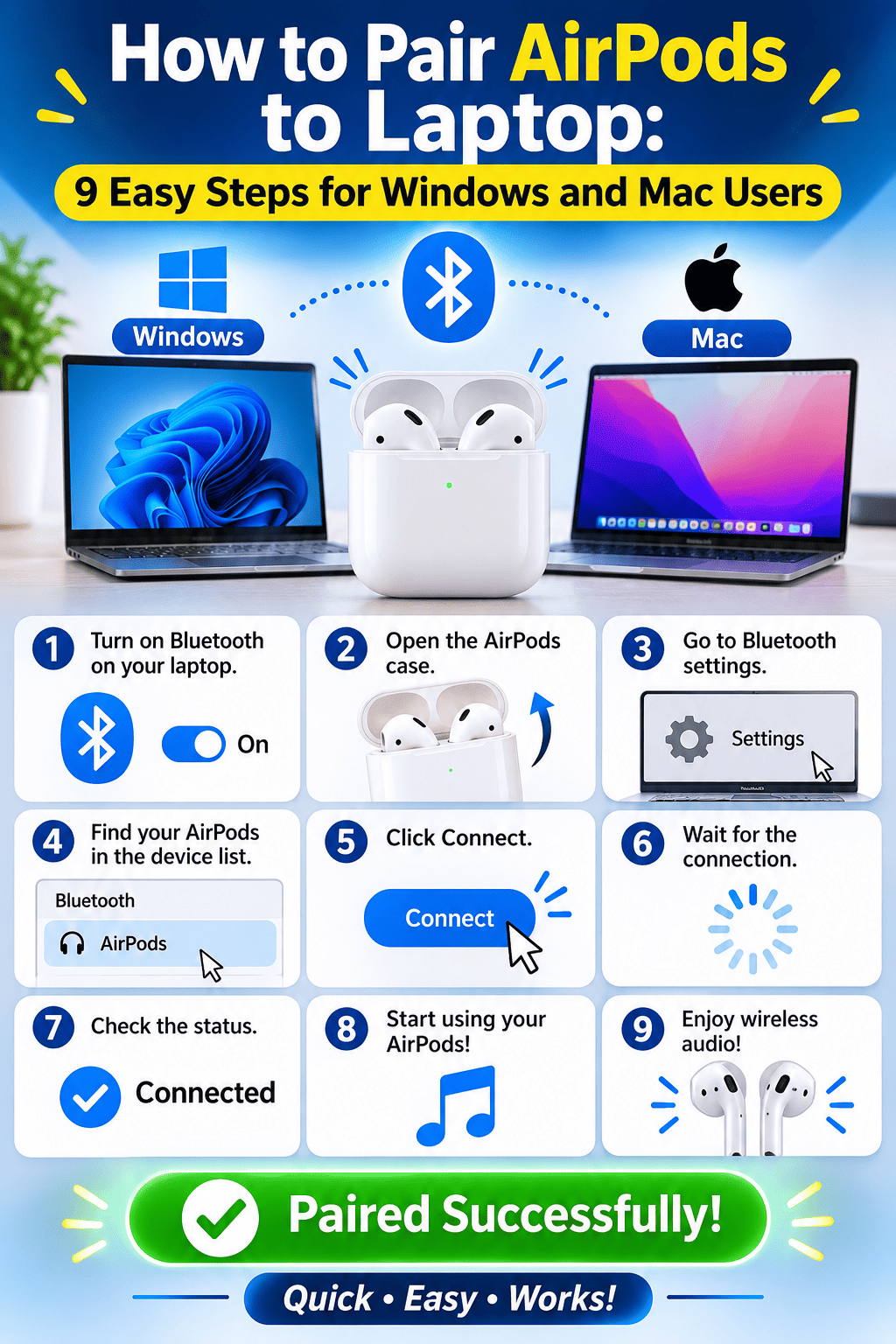
AirPods are popular wireless earbuds designed by Apple to provide convenient audio, clear sound, and a comfortable listening experience. Although they are primarily designed to work with Apple devices, you can also connect them to Windows laptops and other computers that support Bluetooth. Whether you want to listen to music, attend online meetings, watch videos, or make voice calls, connecting your AirPods to a laptop is relatively simple.
Learning how to pair airpods to laptop devices can make your everyday computer experience more convenient. You do not need special software or complicated equipment. In most situations, the built-in Bluetooth feature on your laptop is enough to establish a wireless connection.
However, the connection process differs slightly between Windows and macOS. You must also understand how to activate pairing mode on your AirPods because they cannot connect to a new laptop unless they are discoverable.
This guide explains how to pair airpods to laptop computers, including Windows 11, Windows 10, and MacBooks. It also covers common connection problems, microphone settings, audio quality, and practical troubleshooting methods.
1. Can You Connect AirPods to a Laptop?
Yes, you can connect AirPods to almost any laptop that supports Bluetooth audio connections. Although Apple manufactures AirPods, they are not restricted to iPhones, iPads, and MacBooks.
AirPods use Bluetooth technology to communicate with compatible devices. Therefore, you can connect them to laptops running Windows, macOS, and other operating systems that support Bluetooth audio.
For example, you can use AirPods with:
- Windows 11 laptops.
- Windows 10 laptops.
- MacBook Air.
- MacBook Pro.
- Bluetooth-enabled desktop computers.
- Compatible Chromebooks.
The connection process is similar to pairing other wireless headphones with a computer.
However, some advanced AirPods features may not work when you connect them to a non-Apple device. For example, Siri integration and certain automatic switching features are designed primarily for Apple’s ecosystem.
You can generally use your AirPods for listening to music, watching videos, participating in online meetings, and making voice calls.
Before learning how to pair airpods to laptop devices, make sure that your computer has a functioning Bluetooth connection.
Read More: How to Fix Slow Laptop: Complete Guide to Improving Speed, Performance, and Efficiency
2. What Do You Need Before Pairing AirPods?
Before connecting your AirPods, prepare both devices. A few simple checks can prevent common connection problems.
Check Bluetooth Availability
Your laptop must support Bluetooth wireless communication. Most modern laptops have built-in Bluetooth, but some older computers may require an external Bluetooth adapter.
To check Bluetooth availability on Windows:
- Open the Start menu.
- Select Settings.
- Open Bluetooth & devices.
- Look for the Bluetooth option.
- Check whether Bluetooth is available.
On a MacBook:
- Open the Apple menu.
- Select System Settings.
- Find Bluetooth in the sidebar.
- Check whether Bluetooth is available and enabled.
If your laptop does not have built-in Bluetooth, you may need a compatible USB Bluetooth adapter.
Charge Your AirPods
Make sure your AirPods and charging case have sufficient battery power.
Low battery levels can interrupt the pairing process or cause unexpected disconnections.
Place both earbuds inside the charging case and check the status light. If necessary, connect the case to a power source before continuing.
Keep Your Devices Close Together
Place your AirPods near your laptop during the initial connection.
Bluetooth generally works best when there are no significant physical obstacles between connected devices. Keeping them close together can make it easier for your computer to discover the earbuds.
Disconnect Unnecessary Bluetooth Connections
If your AirPods are already connected to another device, such as an iPhone or iPad, they may automatically connect to that device.
This can sometimes prevent them from connecting to your laptop.
You can temporarily disconnect them from the other device before starting the pairing process.
Read More: How to Screenshot on HP Laptop: Complete Guide to Capturing, Editing, and Saving Screenshots
3. How to Put AirPods into Pairing Mode
Pairing mode allows your AirPods to become discoverable by nearby Bluetooth devices.
Without activating this mode, your laptop may not recognize your earbuds.
The procedure depends on your AirPods model.
AirPods 1, 2, and 3
Follow these steps:
- Place both AirPods inside their charging case.
- Open the charging case lid.
- Locate the setup button on the back of the case.
- Press and hold the button.
- Continue holding it until the status light flashes white.
Your AirPods are now ready to connect to a nearby Bluetooth device.
AirPods 4 and Newer Compatible Models
Some newer AirPods cases use a touch-based pairing process instead of a physical setup button.
For supported models, including AirPods 4 and AirPods Pro 3:
- Place both earbuds inside the charging case.
- Open the case lid.
- Double-tap the front of the charging case.
- Wait until the status light flashes white.
The flashing white light indicates that your AirPods have entered pairing mode.
AirPods Pro
The pairing procedure depends on the generation.
For AirPods Pro models with a physical setup button, place both earbuds inside the case, open the lid, and press and hold the setup button until the status light flashes white.
For AirPods Pro 3, use the supported double-tap procedure on the front of the case.
AirPods Max
AirPods Max do not use a traditional charging case for Bluetooth pairing.
To activate pairing mode:
- Remove your AirPods Max from their Smart Case, if applicable.
- Press and hold the listening mode button.
- Wait until the status light flashes white.
- Release the button.
Your headphones should now appear in the laptop’s Bluetooth device list.
Read More: How to Connect AirPods to Laptop: A Complete Guide for Windows and Mac Users
4. How to Pair AirPods to Laptop Running Windows 11
Windows 11 supports Bluetooth headphones, including Apple AirPods. You can connect them through the Settings application or the taskbar’s Quick Settings panel.
The following method explains how to pair airpods to laptop computers running Windows 11.
Step 1: Open Windows Settings
First, turn on your laptop and open the Start menu.
Select Settings from the available options.
You can also press Windows + I on your keyboard to open Settings directly.
Step 2: Open Bluetooth & Devices
In the Settings window, select Bluetooth & devices from the left-hand navigation panel.
You will see the Bluetooth settings and a list of previously connected devices.
Step 3: Turn On Bluetooth
Find the Bluetooth switch near the top of the window.
Make sure that Bluetooth is turned on.
If it is disabled, click the switch to activate it.
Your laptop can now search for nearby Bluetooth devices.
Step 4: Activate AirPods Pairing Mode
Place your AirPods inside their charging case and open the lid.
Activate pairing mode according to your AirPods model.
Wait until the status light flashes white.
Keep the case close to your laptop while Windows searches for available devices.
Step 5: Select Add Device
In the Bluetooth & devices section, select Add device.
A new window will appear with several connection options.
Choose Bluetooth.
Windows will begin searching for nearby discoverable Bluetooth devices.
Step 6: Select Your AirPods
Wait for your AirPods to appear in the available devices list.
Their name may appear as AirPods, AirPods Pro, or a customized device name.
Click the name of your AirPods.
Windows will begin establishing the Bluetooth connection.
Step 7: Complete the Connection
Wait for Windows to finish pairing.
You should receive a notification indicating that your device is connected.
Your AirPods are now paired with your Windows 11 laptop.
Step 8: Select AirPods as the Audio Output
Sometimes, Windows successfully connects your AirPods but continues playing sound through the laptop speakers.
To correct this:
- Click the sound icon on the taskbar.
- Open the audio output selection menu.
- Find your AirPods.
- Select them as the output device.
Your laptop should now play audio through your wireless earbuds.
Step 9: Test the Connection
Play a short video or audio recording.
Check whether sound comes through both earbuds.
You can also test the microphone by opening a voice recording application or joining an online meeting.
If everything works correctly, the pairing process is complete.
Read More: How to Clean a Laptop Fan: 9 Essential Steps for Better Cooling and Performance
5. How to Pair AirPods to Laptop Running Windows 10
Windows 10 also supports Bluetooth headphones, including AirPods.
Although the interface is slightly different from Windows 11, the basic process remains straightforward.
Follow these instructions to pair airpods to laptop computers running Windows 10.
Step 1: Open the Start Menu
Click the Windows icon in the bottom-left corner of your screen.
Select Settings from the Start menu.
Alternatively, press Windows + I to open the Settings application.
Step 2: Select Devices
In the Settings window, click Devices.
You will find several options related to Bluetooth, printers, keyboards, mice, and other connected equipment.
Step 3: Open Bluetooth & Other Devices
Select Bluetooth & other devices from the left-hand panel.
Find the Bluetooth switch.
Turn it on if it is currently disabled.
Step 4: Activate Pairing Mode on Your AirPods
Place both earbuds inside the charging case.
Open the lid and activate pairing mode.
For models with a setup button, press and hold it until the status light flashes white. For supported newer models, use the double-tap procedure.
Step 5: Add a Bluetooth Device
Click Add Bluetooth or other device.
A new window will appear with different device categories.
Select Bluetooth from the available options.
Your laptop will begin searching for nearby devices.
Step 6: Choose Your AirPods
Wait until your AirPods appear on the screen.
Click their name to establish the connection.
Windows will begin pairing your laptop with the earbuds.
Step 7: Confirm the Connection
Once pairing is successful, Windows will display a confirmation message.
Your AirPods should now be available as a wireless audio device.
Step 8: Change the Audio Output
Click the speaker icon on the taskbar.
Open the sound output options and select your AirPods.
Play an audio file to check whether the connection works correctly.
Important note: Windows 10 reached its standard end-of-support date on October 14, 2025. Although Bluetooth pairing can still work, upgrading to a supported operating system is recommended for security.
Read More: How to Clean Laptop Screen: Complete Guide to Safe Cleaning Methods, Tools, Steps and Maintenance
6. How to Pair AirPods to a MacBook
Connecting AirPods to a MacBook is usually easier than connecting them to a Windows laptop.
If your AirPods are already configured with an iPhone and your MacBook uses the same Apple Account, they may connect automatically.
However, you can also establish a manual Bluetooth connection.
Follow these instructions to pair airpods to laptop computers running macOS.
Step 1: Open System Settings
Turn on your MacBook.
Click the Apple menu in the top-left corner of the screen.
Select System Settings from the menu.
Step 2: Select Bluetooth
Find Bluetooth in the left-hand sidebar.
Click it to open the Bluetooth settings.
Make sure that Bluetooth is turned on.
Your MacBook can now discover nearby Bluetooth devices.
Step 3: Prepare Your AirPods
Place both AirPods inside their charging case.
Open the lid while keeping the earbuds inside.
Activate pairing mode according to your model.
For AirPods with a physical setup button, press and hold it until the status light flashes white.
For supported newer models, double-tap the front of the case.
Step 4: Find Your AirPods
Look for the Nearby Devices section in your MacBook’s Bluetooth settings.
Wait until your AirPods appear in the device list.
If they do not appear immediately, make sure that the pairing light is flashing white.
Step 5: Click Connect
Find your AirPods in the list.
Click Connect next to their name.
Your MacBook will establish a Bluetooth connection.
Step 6: Select AirPods as the Audio Device
After connecting, put your AirPods in your ears.
Open Control Centre from the menu bar.
Select Sound and choose your AirPods as the audio output device.
You can now listen to music, watch videos, and participate in online meetings.
Automatic Connection Between Apple Devices
One advantage of using AirPods with a MacBook is Apple’s device ecosystem.
When your AirPods are configured with an iPhone and both devices use the same Apple Account, they may connect automatically.
This makes switching between compatible Apple devices more convenient.
However, automatic switching depends on device compatibility, software versions, and account settings.
Read More: Best AI Tools for Academic Research Automation: 11 Essential Tools, Features, and Benefits
7. How to Use AirPods for Laptop Calls and Meetings
After connecting your AirPods, you can use them for more than listening to music.
They can also work as a wireless headset for online meetings, video conferences, and voice calls.
Applications such as Zoom, Microsoft Teams, Google Meet, and other communication platforms support Bluetooth audio devices.
However, you may need to select your AirPods manually inside the application.
Select AirPods as the Microphone on Windows
Follow these steps:
- Open Windows Settings.
- Select System.
- Click Sound.
- Find the Input section.
- Select your AirPods microphone if it is available.
- Speak into your AirPods to test the microphone.
The available microphone options may differ depending on your AirPods model and Windows Bluetooth drivers.
Select AirPods as the Microphone on Mac
On a MacBook:
- Open System Settings.
- Select Sound.
- Find the Input section.
- Choose your AirPods.
- Speak into the microphone.
- Check the input level indicator.
If the indicator responds to your voice, the microphone is receiving audio.
Configure Audio in Video Conferencing Applications
You should also check the audio settings inside your communication application.
For example, in Zoom:
- Open Zoom.
- Go to Settings.
- Select Audio.
- Choose your AirPods as the speaker.
- Select the AirPods microphone if available.
- Test the speaker and microphone.
The same general approach applies to Microsoft Teams and Google Meet.
Remember that Bluetooth audio quality may change when the microphone is active. This is related to Bluetooth audio profiles and available bandwidth.
Read More: AI SEO Automation Features: 9 Essential Benefits, Tools, and Strategies for Better Rankings
8. How to Fix AirPods That Will Not Connect to a Laptop
Sometimes, your AirPods may not appear in the Bluetooth device list or may fail to establish a connection.
Fortunately, most pairing problems can be resolved with a few troubleshooting methods.
Here are some practical solutions.
Problem 1: AirPods Do Not Appear in the Bluetooth List
If your laptop cannot find your AirPods, check whether they are in pairing mode.
Solution:
- Place both earbuds inside the charging case.
- Open the lid.
- Activate pairing mode.
- Wait for the status light to flash white.
- Keep the case close to your laptop.
- Search for Bluetooth devices again.
Also, make sure that Bluetooth is enabled on your laptop.
Problem 2: AirPods Are Connected but There Is No Sound
Your laptop may successfully recognize your AirPods without selecting them as the default audio output.
Solution:
Open your laptop’s sound settings.
Find the output device selection menu.
Choose your AirPods instead of the built-in speakers.
Play an audio file to check whether sound is working.
If there is still no sound, disconnect and reconnect the earbuds.
Problem 3: AirPods Keep Disconnecting
Unexpected disconnections can occur because of low battery levels, wireless interference, outdated drivers, or Bluetooth connection problems.
Solution:
- Charge your AirPods.
- Keep them within a reasonable distance of your laptop.
- Move away from sources of wireless interference.
- Restart your laptop.
- Turn Bluetooth off and on again.
- Disconnect unused Bluetooth devices.
- Update your laptop’s Bluetooth drivers where applicable.
If the problem continues, try pairing your AirPods with another device to determine whether the issue comes from the laptop or the earbuds.
Problem 4: AirPods Are Connected to an iPhone Instead
AirPods may automatically reconnect to a previously used Apple device.
This can interrupt the laptop connection.
Solution:
Open Bluetooth settings on your iPhone.
Find your AirPods and disconnect them temporarily.
Alternatively, turn off Bluetooth on the iPhone while pairing with your laptop.
Then activate pairing mode and search for the earbuds again.
Problem 5: Windows Cannot Complete the Pairing Process
Sometimes, Windows detects your AirPods but cannot complete the connection.
This may happen because of an existing pairing record or a temporary Bluetooth problem.
Solution:
- Open Settings.
- Select Bluetooth & devices.
- Find your AirPods under connected or previously paired devices.
- Open the device options.
- Select Remove device if necessary.
- Restart your laptop.
- Put your AirPods into pairing mode.
- Add them again.
Removing an old pairing record and establishing a new connection can resolve many Bluetooth problems.
Problem 6: AirPods Microphone Is Not Working
Your AirPods may play audio correctly while the microphone fails to work.
This can happen when the laptop or communication application selects another input device.
Solution:
Open your laptop’s sound settings.
Check the microphone or input device selection.
Select your AirPods if they are available.
Then verify the microphone permissions of the application you are using.
For example, Windows users can check microphone access under Privacy & security settings.
Mac users can review microphone permissions under Privacy & Security in System Settings.
Problem 7: AirPods Produce Poor Audio Quality
Bluetooth audio quality may decrease when the microphone is being used.
This is especially noticeable during video calls and voice meetings.
Solution:
- Check the audio output device.
- Close unnecessary communication applications.
- Disconnect and reconnect your AirPods.
- Check whether the application has separate microphone and speaker settings.
- Update your laptop’s Bluetooth software and drivers where applicable.
If you need better microphone quality during professional meetings, an external microphone can be a useful alternative.
Problem 8: AirPods Connect to the Laptop but Do Not Reconnect Automatically
Once AirPods have been paired successfully, they generally reconnect when they are nearby and available.
However, another device may take priority or the laptop may not select them as the current audio output.
Solution:
Open your laptop’s Bluetooth settings.
Check whether your AirPods are listed as a paired device.
Select Connect if necessary.
Then open the sound settings and choose them as the output device.
Problem 9: Bluetooth Is Missing from Windows Settings
If your Windows laptop does not show a Bluetooth option, the problem may involve missing drivers, disabled hardware, or a computer without built-in Bluetooth.
Solution:
- Right-click the Start button.
- Open Device Manager.
- Expand the Bluetooth category if it appears.
- Check whether the Bluetooth adapter is enabled.
- Update its driver if necessary.
- Restart your laptop.
If no Bluetooth adapter is available, check your laptop specifications or consider a compatible USB Bluetooth adapter.
Read More: AI Automation Consulting: 9 Essential Benefits, Services, Strategies, and Business Applications
9. How to Improve AirPods Performance When Connected to a Laptop
After learning how to pair airpods to laptop computers, you should also understand how to maintain a stable connection.
Good Bluetooth practices can improve your listening experience.
Keep Your AirPods Charged
Battery levels affect the reliability of wireless earbuds.
Charge your AirPods regularly and avoid allowing the battery to become completely depleted.
You should also charge the case because it provides additional power to the earbuds.
Maintain a Stable Bluetooth Connection
Keep your AirPods reasonably close to your laptop.
Avoid placing your computer behind thick walls or inside enclosed spaces while using wireless audio.
Physical obstacles and wireless interference can reduce connection stability.
Keep Your Operating System Updated
Software updates can improve Bluetooth compatibility and fix connection problems.
Windows users should install appropriate system and Bluetooth driver updates.
Mac users should install compatible macOS updates.
You should also keep your laptop’s Bluetooth adapter drivers up to date.
Manage Connected Devices
If your AirPods frequently switch between devices, review the Bluetooth connections on your phone, tablet, and computer.
Disconnect devices that you are not currently using.
This can make it easier to control which device receives the audio connection.
Clean Your AirPods Carefully
Dust and debris can accumulate around the earbuds and charging contacts.
Clean them according to Apple’s care instructions.
Use a soft, dry, lint-free cloth and avoid introducing moisture into the speaker openings.
Clean charging contacts help maintain reliable charging and prevent unnecessary battery problems.
10. Can You Connect AirPods to a Laptop Without Bluetooth?
AirPods require Bluetooth for a standard wireless connection.
Therefore, you cannot connect them wirelessly to a laptop that has no Bluetooth capability unless you add compatible Bluetooth hardware.
Fortunately, there is a simple solution.
Use a USB Bluetooth Adapter
A USB Bluetooth adapter adds Bluetooth functionality to a compatible computer.
Follow these steps:
- Purchase a compatible USB Bluetooth adapter.
- Connect it to an available USB port.
- Install the required drivers if necessary.
- Turn on Bluetooth.
- Put your AirPods into pairing mode.
- Open the laptop’s Bluetooth settings.
- Search for available devices.
- Select your AirPods.
Once connected, you can use them for wireless audio.
Before purchasing an adapter, check its compatibility with your operating system.
Some adapters support only particular Bluetooth versions or require specific drivers.
Does a USB Cable Connect AirPods Directly to a Laptop?
A charging cable does not provide a standard wired audio connection between AirPods and a laptop.
The cable is used to charge the compatible charging case.
For wireless listening, you still need Bluetooth connectivity.
11. AirPods vs Traditional Bluetooth Headphones for Laptop Use
AirPods are convenient wireless earbuds, but they are not the only option for laptop audio.
Traditional Bluetooth headphones can also provide excellent sound quality and useful features.
The best choice depends on your requirements.
| Feature | AirPods | Traditional Bluetooth headphones |
| Wireless connection | Bluetooth | Bluetooth |
| Laptop compatibility | Windows and Mac | Windows and Mac |
| Microphone | Available | Available on many models |
| Portability | Compact | Depends on design |
| Charging | Charging case or cable, depending on model | Depends on model |
| Apple ecosystem integration | Strong | Varies |
| Noise cancellation | Available on selected models | Available on selected models |
| Wired audio | Model-dependent | Available on some models |
AirPods are particularly convenient for people who already use Apple devices.
However, traditional headphones may provide larger batteries, different microphone designs, and additional connectivity options.
For everyday laptop use, either option can be suitable.
12. Common Mistakes to Avoid When Pairing AirPods
Although connecting AirPods is usually straightforward, certain mistakes can make the process unnecessarily difficult.
Avoid the following problems.
1. Forgetting to activate pairing mode
Your AirPods must be discoverable before your laptop can connect to them.
2. Keeping the charging case closed
For supported AirPods models, the case lid must be open during the pairing process.
3. Ignoring battery levels
Low battery power can interrupt the connection.
4. Connecting to the wrong device
Always check the device name before selecting an item from the Bluetooth list.
5. Forgetting to select the audio output
A successful Bluetooth connection does not always mean your laptop will automatically use the AirPods for sound.
6. Ignoring microphone settings
If you use AirPods for meetings, check both the speaker and microphone selections.
7. Using outdated Bluetooth drivers
Outdated or malfunctioning drivers can create compatibility problems.
8. Resetting AirPods unnecessarily
Try basic troubleshooting before performing a factory reset. Resetting may remove existing pairing information and require you to configure the earbuds again.
Frequently Asked Questions (FAQ)
1. Can I connect AirPods to a Windows laptop?
Yes. AirPods can connect to Windows laptops through Bluetooth. Activate pairing mode on your AirPods, open your laptop’s Bluetooth settings, select Add device, and choose your earbuds from the available devices list.
2. How do I connect AirPods to a laptop for the first time?
First, make sure that Bluetooth is enabled on your laptop. Place both AirPods inside their charging case, open the lid, and activate pairing mode. Then open your computer’s Bluetooth settings and select your AirPods when they appear.
3. Why are my AirPods not showing up on my laptop?
Your AirPods may not appear because they are not in pairing mode, their battery is low, or Bluetooth is disabled on your laptop. Activate pairing mode again and make sure that the devices are close to each other.
4. Can I use AirPods with Windows 11?
Yes. Windows 11 supports Bluetooth audio devices, including AirPods. You can connect them through Settings > Bluetooth & devices > Add device > Bluetooth.
5. Can I connect AirPods to a MacBook without an iPhone?
Yes. You do not need an iPhone to connect AirPods to a MacBook. Simply activate pairing mode and connect them through the MacBook’s Bluetooth settings.
6. Do AirPods work as a laptop microphone?
Yes. AirPods can function as a microphone when connected to a compatible laptop. Select them as the input device in your operating system or communication application.
7. Why do my AirPods connect but produce no sound?
Your laptop may be using its built-in speakers instead of your AirPods. Open the sound settings and select your earbuds as the audio output device.
8. Can I connect AirPods to two laptops simultaneously?
AirPods can remember multiple paired devices, but they do not provide ordinary simultaneous audio playback from two laptops. You generally need to switch the active connection between devices.
9. Do I need to install software to connect AirPods to a laptop?
No. You generally do not need additional software to connect AirPods to a Bluetooth-enabled laptop. Windows and macOS provide built-in Bluetooth settings for pairing wireless headphones.
10. How do I disconnect AirPods from my laptop?
Open your laptop’s Bluetooth settings, find your AirPods, and select Disconnect. If you want to remove the pairing information completely, select Remove device or Forget This Device, depending on your operating system.
11. Will AirPods automatically connect to my laptop?
After the initial pairing, AirPods can generally reconnect to a previously paired laptop when they are nearby and available. However, another connected device may take priority, so you might need to select your AirPods manually.
12. Can I use AirPods for Zoom meetings on a laptop?
Yes. You can use AirPods for Zoom meetings, provided that your laptop supports Bluetooth. Select your AirPods as the speaker and microphone in Zoom’s audio settings.
Conclusion
AirPods provide a convenient way to enjoy wireless audio on laptops. Although Apple designs them primarily for its own devices, they also work with Windows computers and other Bluetooth-enabled laptops.
The process is straightforward: activate pairing mode on your AirPods, turn on Bluetooth on your laptop, find the earbuds in the available devices list, and establish the connection.
Whether you use Windows 11, Windows 10, or macOS, understanding how to pair airpods to laptop computers allows you to enjoy music, watch videos, and participate in online meetings without connecting traditional wired headphones.
If you experience connection problems, check your battery levels, Bluetooth settings, audio output selection, and microphone configuration. In most cases, these simple troubleshooting methods can restore a stable connection.
With the correct settings and a properly functioning Bluetooth connection, your AirPods can become a useful wireless audio accessory for everyday laptop activities.